
MetaTrader 5
A Next-Generation Trading Experience
Faster. Smarter. More Powerful.
Elevate your trading with enhanced speed, advanced tools, and greater control.
Built for performance, MetaTrader 5 offers a more advanced and versatile trading experience compared to previous platform generations.
Enhanced Capabilities
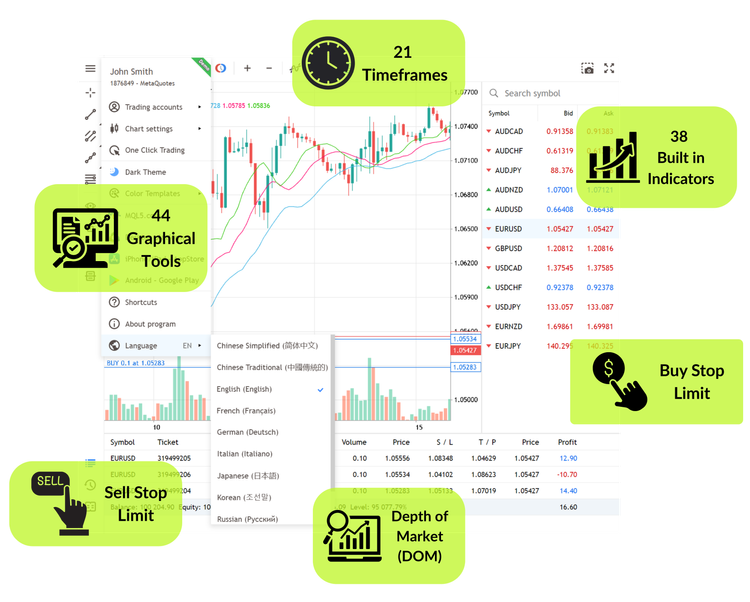
🔹 Expanded timeframe selection for deeper market analysis
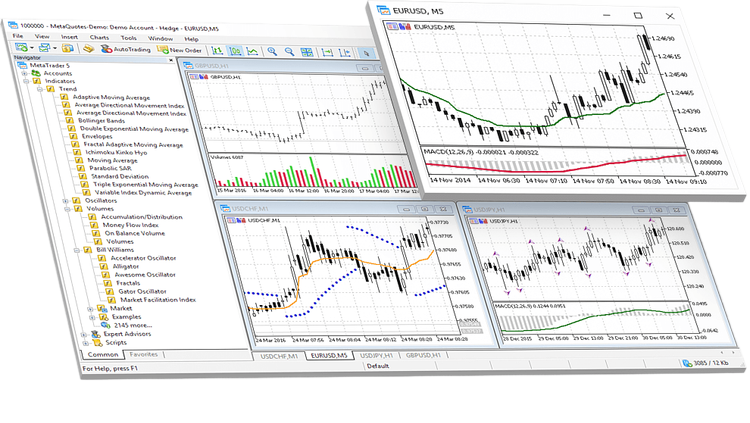
🔹 A broader range of built-in technical indicators
🔹 Advanced charting and graphical tools
🔹 Additional order types for greater trading flexibility
🔹 Depth of Market (DOM) to view available liquidity in real time
Improved Performance
🔹 Multi-threaded strategy testing for faster backtesting
🔹 Optimized architecture for efficient trade execution
🔹 Support for both netting and hedging account models
Greater Access & Flexibility
🔹 Access to a wider range of asset classes
🔹 Built-in economic calendar for tracking market events
🔹 Integrated news feed to stay informed on financial developments

FAQs
Step 1: Download MT5 from your Titanium dashboard.
Step 2: Run the installation file. If a security prompt appears, confirm by selecting Yes.
Step 3: Review and accept the MetaTrader 5 license agreement.
Step 4: Click Install to begin setup.
Step 5: Once installed, launch the platform and choose your server.
Step 6: Log in using your MT5 account number and password.
Step 7: You’re ready to start trading on MT5.
For additional guidance, you can follow installation tutorials for:
Mobile: iOS / Android
Desktop: Windows / Linux / Mac
If you need assistance, feel free to contact support.
When opening a demo or live account with Titanium, you will be asked to select your preferred trading platform.
Choose MT5 as your platform of choice.
If you need help installing or setting up MT5, please refer to the installation guide above.
Before opening a live account with Titanium, you can start with a demo account to practice trading in a risk-free environment.
To place a trade on MT5:
Select a financial instrument from the Market Watch window
Open the context menu
Click New Order
When you're ready to trade in live markets, log in to MT5 through your Titanium dashboard, fund your account, and place your trade.
To update your MT5 account password:
Go to Tools in the main toolbar and select Options
Open the Server tab
Ensure your login and current password are entered
Click Change
Enter your current password and your new password twice
You can choose to update either the Master Password or the Investor (read-only) Password.
Click OK to confirm the changes.
Click File in the main toolbar
Select Login to Trade Account
Enter your login details and password
Choose the appropriate server
Click OK to access your account
A margin call occurs when your account equity drops below the required level to maintain your open positions. If equity continues to decline, a stop-out may be triggered, resulting in automatic closure of positions to limit further losses.
To help manage this risk, regularly monitor your margin levels and consider using stop-loss orders to control potential losses.
The platform time zone is fixed and cannot be adjusted on MT4 or MT5.
Account reports can be accessed directly from within the trading platform.
Open the Account History tab in the Terminal window, right-click to select the desired time period, then right-click again and choose Save as Report.
If required, reports can also be requested from the Titanium support team.
To configure notifications:
Go to Tools > Options
Select the Notifications tab
Enter your phone number and MetaQuotes ID to enable mobile push notifications
Turn alerts on or off based on your preferences
You can also customize notifications for events such as price movements, order activity, or account balance changes.
You can keep positions open for as long as you choose, provided your margin levels remain sufficient on the MT4 or MT5 platform.
Withdrawals can be requested through your Titanium client dashboard via the Payments section:
Log in to your Titanium account
Go to the Payments tab
Select Withdraw
Choose your preferred withdrawal method
Follow the on-screen steps and submit your request
Processing times may vary depending on the selected withdrawal method.
Open MT5 and go to the Market Watch window
Right-click on the instrument you want to trade and select New Order
In the order window:
Choose the Order Type (Market Execution or Pending Order)
Set the Volume (lot size)
Optionally define Stop-Loss and Take-Profit levels
Click Buy or Sell to execute the trade.
Your position will appear in the Trade tab within the Terminal window.
Open MT5 and go to the Trade tab in the Terminal window
Find the position you want to close
Right-click on the trade and select Close Order
Alternatively, you can double-click the position and use the Close button in the order window.
Once closed, the resulting profit or loss will be reflected in your account balance.
Go to the Trade tab in the Terminal window
Right-click on the open position and select Modify or Delete Order
Adjust your Stop-Loss or Take-Profit levels as needed
For pending orders, you can also modify the entry price, expiration time, or order type.
Click Modify to apply the changes.
You may also use the Trailing Stop feature to automatically adjust your stop-loss based on market movement.
Trade Directly from Your Browser
No downloads required, access the markets instantly.
Use advanced charting tools, custom alerts, and automated trading features from any device.
Trade a Wide Range of Markets, Anytime
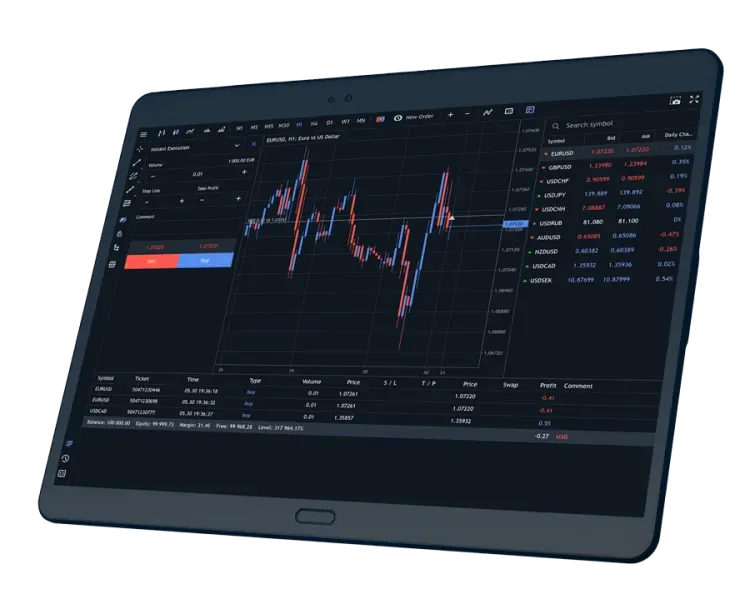
MT5 provides a wide range of analytical tools, an integrated economic calendar, and customizable charts to support your trading strategy.

Use Advanced Tools
MT5 gives you 80+ built-in analytical tools, an advanced economic calendar, and fully adjustable charts—tailor every aspect of your strategy.
Expand with MLQ5
Access a vast marketplace of trading tools through the MetaTrader ecosystem, including automated strategies, indicators, and custom utilities to enhance your trading approach.

FAQs
Yes. MT5 WebTrader allows you to access your trading account directly from your browser, no downloads or installations required. It works across devices and provides a convenient way to trade with flexibility.
Yes. MT5 WebTrader runs entirely in your browser, simply log in through your Titanium account and start trading from any device.
Yes. All data is encrypted and securely transmitted to help protect your trading activity and personal information.
Yes. Simply use your existing Titanium MT5 login credentials to access your account via WebTrader.
MT5 WebTrader is compatible with all modern browsers, including Chrome, Firefox, Safari, and Edge.
WebTrader includes all essential trading features. However, advanced tools such as custom indicators or automated strategies are available only on the desktop platform.
Yes. Your account data syncs across platforms, allowing you to move between web, mobile, and desktop seamlessly.
Click Launch WebTrader, log in with your MT5 credentials, and begin trading instantly — no installation required.
Yes. You can open multiple charts and choose from various timeframes to monitor markets and perform technical analysis.
Yes. MT5 WebTrader includes a wide selection of built-in indicators, chart types, and drawing tools for technical analysis.
Trade Wherever You Are
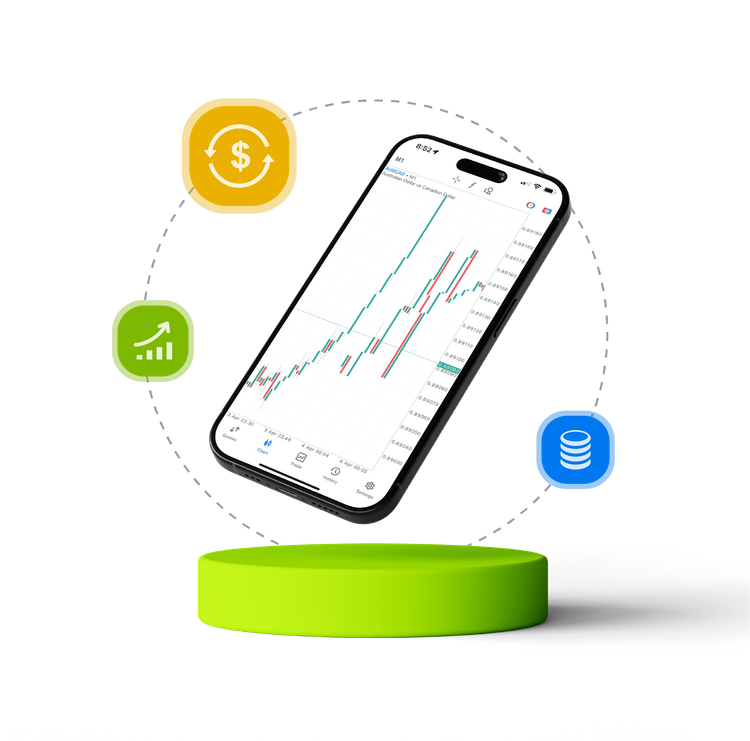
With the MT5 mobile app for iOS and Android, stay connected to the markets anytime, anywhere.
Access full trading functionality directly from your mobile device and manage your positions on the go.
Trade on Your Terms
Stay connected to the markets wherever you are. Manage your trades with instant access and maintain control from any location.

Trading at Your Fingertips
Execute trades, manage positions, analyze charts, and set alerts directly from your mobile device, keeping you connected to the markets wherever you are.
FAQs
MT5 Mobile is the official trading app for iOS and Android, allowing you to access the markets, real-time pricing, and trading tools directly from your mobile device.
Download the MT5 app, open it, choose Login to an Existing Account, then enter your Titanium server and login details.
Go to the Quotes section, select an instrument, tap New Order, choose your volume, set optional stop-loss or take-profit levels, then tap Buy or Sell.
Yes. You can log in to multiple accounts and switch between them easily.
Yes. The History tab displays your past trades, deposits, and withdrawals.
Open the Trade tab, select your position, and choose Modify to update stop-loss or take-profit levels.
Enable alerts through your device settings or configure them inside the app.
Yes. Your MT5 account syncs across mobile, desktop, and web platforms.
Yes. The app is free to download and use for both demo and live trading.
Yes. The app includes built-in indicators, chart types, and drawing tools.
Yes. You can open, modify, and close trades in real time.
Yes. You can open, modify, and close trades in real time.
No. Automated trading is available only on the desktop version of MT5.
Trading Accounts
Trading Instruments
Trading Platforms
Trade Titanium
Customer Notice
Trading derivatives carries a high level of risk to your capital and you should only trade with money you can afford to lose. Any information or advice contained on this website is general in nature and has been prepared without taking into account your objectives, financial situation, or needs. Past performance of any product described on this website is not a reliable indication of future performance. You should review all relevant legal documentation to ensure you fully understand the risks before making any trading decisions. We encourage you to seek independent advice if necessary. The information on this website is not intended to be an inducement, offer, or solicitation to any person in any country or jurisdiction where such distribution or use would be contrary to local law or regulation.
Trade Titanium, Inc is registered in the State of Georgia, United States as a Foreign Profit Corporation with registration number 12074807. The company operates globally in accordance with applicable laws and compliance standards.
© Copyright 2012–2026 Trade Titanium, Inc. All rights reserved.
All trademarks, service marks, trade names, trade dress, product names, and logos appearing on this site are the property of their respective owners.
MetaTrader 5
A Next-Generation Trading Experience
Faster. Smarter. More Powerful.
Elevate your trading with enhanced speed, advanced tools, and greater control.
Built for performance, MetaTrader 5 offers a more advanced and versatile trading experience compared to previous platform generations.
Enhanced Capabilities
🔹 Expanded timeframe selection for deeper market analysis
🔹 A broader range of built-in technical indicators
🔹 Advanced charting and graphical tools
🔹 Additional order types for greater trading flexibility
🔹 Depth of Market (DOM) to view available liquidity in real time
Improved Performance
🔹 Multi-threaded strategy testing for faster backtesting
🔹 Optimized architecture for efficient trade execution
🔹 Support for both netting and hedging account models
Greater Access & Flexibility
🔹 Access to a wider range of asset classes
🔹 Built-in economic calendar for tracking market events
🔹 Integrated news feed to stay informed on financial developments
FAQs
Step 1: Download MT5 from your Titanium dashboard.
Step 2: Run the installation file. If a security prompt appears, confirm by selecting Yes.
Step 3: Review and accept the MetaTrader 5 license agreement.
Step 4: Click Install to begin setup.
Step 5: Once installed, launch the platform and choose your server.
Step 6: Log in using your MT5 account number and password.
Step 7: You’re ready to start trading on MT5.
For additional guidance, you can follow installation tutorials for:
Mobile: iOS / Android
Desktop: Windows / Linux / Mac
If you need assistance, feel free to contact support.
When opening a demo or live account with Titanium, you will be asked to select your preferred trading platform.
Choose MT5 as your platform of choice.
If you need help installing or setting up MT5, please refer to the installation guide above.
Before opening a live account with Titanium, you can start with a demo account to practice trading in a risk-free environment.
To place a trade on MT5:
Select a financial instrument from the Market Watch window
Open the context menu
Click New Order
When you're ready to trade in live markets, log in to MT5 through your Titanium dashboard, fund your account, and place your trade.
To update your MT5 account password:
Go to Tools in the main toolbar and select Options
Open the Server tab
Ensure your login and current password are entered
Click Change
Enter your current password and your new password twice
You can choose to update either the Master Password or the Investor (read-only) Password.
Click OK to confirm the changes.
Click File in the main toolbar
Select Login to Trade Account
Enter your login details and password
Choose the appropriate server
Click OK to access your account
A margin call occurs when your account equity drops below the required level to maintain your open positions. If equity continues to decline, a stop-out may be triggered, resulting in automatic closure of positions to limit further losses.
To help manage this risk, regularly monitor your margin levels and consider using stop-loss orders to control potential losses.
The platform time zone is fixed and cannot be adjusted on MT4 or MT5.
Account reports can be accessed directly from within the trading platform.
Open the Account History tab in the Terminal window, right-click to select the desired time period, then right-click again and choose Save as Report.
If required, reports can also be requested from the Titanium support team.
To configure notifications:
Go to Tools > Options
Select the Notifications tab
Enter your phone number and MetaQuotes ID to enable mobile push notifications
Turn alerts on or off based on your preferences
You can also customize notifications for events such as price movements, order activity, or account balance changes.
You can keep positions open for as long as you choose, provided your margin levels remain sufficient on the MT4 or MT5 platform.
Withdrawals can be requested through your Titanium client dashboard via the Payments section:
Log in to your Titanium account
Go to the Payments tab
Select Withdraw
Choose your preferred withdrawal method
Follow the on-screen steps and submit your request
Processing times may vary depending on the selected withdrawal method.
Open MT5 and go to the Market Watch window
Right-click on the instrument you want to trade and select New Order
In the order window:
Choose the Order Type (Market Execution or Pending Order)
Set the Volume (lot size)
Optionally define Stop-Loss and Take-Profit levels
Click Buy or Sell to execute the trade.
Your position will appear in the Trade tab within the Terminal window.
Open MT5 and go to the Trade tab in the Terminal window
Find the position you want to close
Right-click on the trade and select Close Order
Alternatively, you can double-click the position and use the Close button in the order window.
Once closed, the resulting profit or loss will be reflected in your account balance.
Go to the Trade tab in the Terminal window
Right-click on the open position and select Modify or Delete Order
Adjust your Stop-Loss or Take-Profit levels as needed
For pending orders, you can also modify the entry price, expiration time, or order type.
Click Modify to apply the changes.
You may also use the Trailing Stop feature to automatically adjust your stop-loss based on market movement.
Trade Directly from Your Browser
No downloads required, access the markets instantly.
Use advanced charting tools, custom alerts, and automated trading features from any device.
Trade a Wide Range of Markets, Anytime
MT5 provides a wide range of analytical tools, an integrated economic calendar, and customizable charts to support your trading strategy.
Use Advanced Tools
MT5 gives you 80+ built-in analytical tools, an advanced economic calendar, and fully adjustable charts—tailor every aspect of your strategy.
Expand with MLQ5
Access a vast marketplace of trading tools through the MetaTrader ecosystem, including automated strategies, indicators, and custom utilities to enhance your trading approach.
FAQs
Yes. MT5 WebTrader allows you to access your trading account directly from your browser, no downloads or installations required. It works across devices and provides a convenient way to trade with flexibility.
Yes. MT5 WebTrader runs entirely in your browser, simply log in through your Titanium account and start trading from any device.
Yes. All data is encrypted and securely transmitted to help protect your trading activity and personal information.
Yes. Simply use your existing Titanium MT5 login credentials to access your account via WebTrader.
MT5 WebTrader is compatible with all modern browsers, including Chrome, Firefox, Safari, and Edge.
WebTrader includes all essential trading features. However, advanced tools such as custom indicators or automated strategies are available only on the desktop platform.
Yes. Your account data syncs across platforms, allowing you to move between web, mobile, and desktop seamlessly.
Click Launch WebTrader, log in with your MT5 credentials, and begin trading instantly — no installation required.
Yes. You can open multiple charts and choose from various timeframes to monitor markets and perform technical analysis.
Yes. MT5 WebTrader includes a wide selection of built-in indicators, chart types, and drawing tools for technical analysis.
Trade Wherever You Are
With the MT5 mobile app for iOS and Android, stay connected to the markets anytime, anywhere.
Access full trading functionality directly from your mobile device and manage your positions on the go.
Trade on Your Terms
Stay connected to the markets wherever you are. Manage your trades with instant access and maintain control from any location.
Trading at Your Fingertips
Execute trades, manage positions, analyze charts, and set alerts directly from your mobile device, keeping you connected to the markets wherever you are.
FAQs
MT5 Mobile is the official trading app for iOS and Android, allowing you to access the markets, real-time pricing, and trading tools directly from your mobile device.
Download the MT5 app, open it, choose Login to an Existing Account, then enter your Titanium server and login details.
Go to the Quotes section, select an instrument, tap New Order, choose your volume, set optional stop-loss or take-profit levels, then tap Buy or Sell.
Yes. You can log in to multiple accounts and switch between them easily.
Yes. The History tab displays your past trades, deposits, and withdrawals.
Open the Trade tab, select your position, and choose Modify to update stop-loss or take-profit levels.
Enable alerts through your device settings or configure them inside the app.
Yes. Your MT5 account syncs across mobile, desktop, and web platforms.
Yes. The app is free to download and use for both demo and live trading.
Yes. The app includes built-in indicators, chart types, and drawing tools.
Yes. You can open, modify, and close trades in real time.
Yes. You can open, modify, and close trades in real time.
No. Automated trading is available only on the desktop version of MT5.

Trading Accounts
- Account Types
- Demo Trading
- Joint Account
- Corporate Account
Trading Instruments
- Forex
- Crypto CFDs
- Indices
- Commodities
Trading Platforms
- MT5 Desktop
- MT5 Webtrader
- MT5 Mobile
- MT4 for Desktop
- MT4 Webtrader
- MT4 Android
Global Prime
- Our story
- Contact us
- Regulation and Licensing
- Legal Documents
- ID Documents
- Privacy Policy
- IBs/Affilates